Setting up
Setting up.
The first time Decaf opens, it asks how you will use it. There are two paths.
Just iMessage on this Mac
Read and answer your texts here. Nothing changes on your iPhone. About 5 minutes to set up.
iMessage on this Mac, plus a second phone
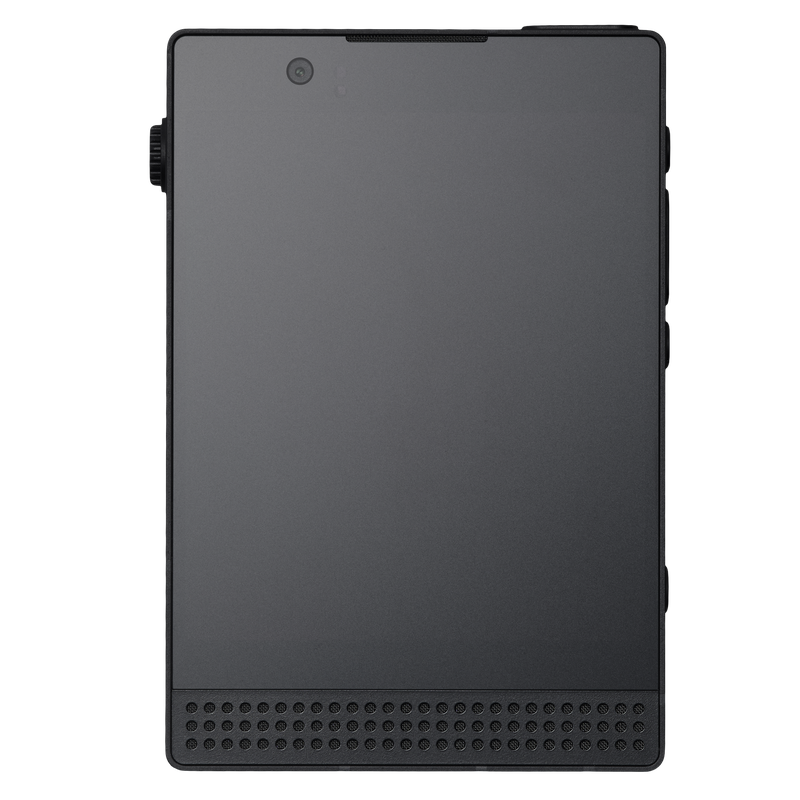
Your iPhone keeps your main number. A Light Phone, flip phone, or second iPhone with a separate phone number receives time-sensitive texts from Decaf in one thread. You reply to the thread to answer the texts from your second phone. About 10 minutes to set up, need both phones handy.
Welcome to Decaf
Decaf is a calm iMessage Mac app that relays time-sensitive and important texts to a second phone.
How will you use it?
Free 14-day trial. Then a $20 one-time purchase.
Decaf is already on another Mac
Open inbox · Set up later
On this Mac
Both paths start with the same three screens.
-
Disk access
Your texts are already on this Mac, in Messages. macOS keeps them locked until you turn on Decaf under Full Disk Access. macOS has no switch for Messages alone, so this is the one it asks for.
In System Settings → Full Disk Access, find Decaf in the list and turn it on. If it isn’t there, press + and choose Decaf from Applications. macOS may ask for your Mac’s password.
Decaf watches for the switch. Once it is on, the screen changes by itself and shows the people who texted you most recently. Press Continue.
Keeping your iPhone with you? Green-bubble texts, like sign-in codes and friends on Android phones, come to this Mac only if your iPhone passes them on: Settings → Messages → Text Message Forwarding → your Mac. This screen offers it as an optional row.
-
Send replies
Decaf sends your replies through Messages on this Mac, so they come from your own number. Three permissions, each a dialog that Decaf names before it opens:
- RepliesmacOS asks if Decaf may use Messages.
- Photos and voice notesShortcuts asks to add a shortcut Decaf makes. macOS may ask once more to let Decaf use Shortcuts.
- Texts to several peopleShortcuts asks to add one more.
The button names the next dialog each time: Allow replies, Add the photos shortcut, Add the second shortcut, then Continue. A row ticks once Decaf has proved it.
Not now: you can still read texts here and answer them on your iPhone, and Decaf asks again the first time you reply. With a second phone, Decaf needs Replies to text it.
-
Desktop notifications
Messages alerts you for every text and counts them on its icon. Turn its alerts off on this Mac, and Decaf alerts you only when a text can’t wait.
- Decaf’s alertsmacOS asks once. Decaf then shows you one sample alert.
- Messages’ alertsOn this Mac, in System Settings → Notifications → Messages, turn off Allow notifications. Leave Messages running; Decaf sends through it.
Then Open inbox, or Continue to the second phone.
Setup ends in the inbox, where one card says what was set up: Important shows what needs you. All unread has every unread text. Time-sensitive texts are flagged with a black dot. Click a name to read and answer; replies send from Messages, as you.
Your second phone
The second path continues here, with both phones in hand. Decaf relays important messages to this phone in one thread. You can reply directly in the thread, and Decaf will relay the reply.
-
Your second phone
Choose what you carry.
- A Light Phone or flip phoneDecaf relays messages as SMS texts in one thread. Before a reply is relayed, it asks for confirmation.
- An iPhoneDecaf relays messages as iMessages in one thread. You can reply directly to a relayed iMessage by using the thread reply feature in iMessage. Smoothest functionality.
Then type the second phone number. It needs a number of its own; your main number stays in your iPhone. Don’t know its number? Text your iPhone from your second phone. The number shows there.
A second iPhone should be signed in to iMessage with its own Apple ID, not your main one, so your everyday texts don’t land there too.
-
Your iPhone stays home
For Decaf to work correctly, your main iPhone needs to be charged and logged into every few days. Alternatively, you can leave the iPhone plugged in at home with the passcode turned off.
- Text Message ForwardingFor SMS texts to get relayed. On your iPhone: Settings → Messages → Text Message Forwarding → turn on your Mac. On a newer iPhone the path starts Settings → Apps.
- Call forwardingCalls to your main number still ring your iPhone. To ring your second phone instead, turn on call forwarding with your carrier (on many iPhones: Settings → Phone → Call Forwarding).
- Logging inEnter its passcode at least every three days. Left longer, it restarts, and regular SMS texts stop reaching Decaf until someone enters its passcode once. The same happens after an update. Decaf tells you on this Mac when regular texts stop.
- Save Decaf as a contactDecaf’s texts come from your own number, because your iPhone sends them. Save that number in your second phone as Decaf, so you know who’s texting.
-
The test text
Press Send the test text. Your second phone gets Decaf: this is a test text. Reply with any word, and your Mac will show it.
Reply with any word. When your reply reaches the Mac, the screen changes to Your reply arrived and asks where urgent texts should go from now on. Send them to my second phone is the usual choice. My second phone and this Mac keeps alerting the Mac too.
Decaf
Decaf: this is a test text. Reply with any word, and your Mac will show it.
ok
The test text on a Light Phone. The reply arriving on the Mac proves both directions at once. Nothing arrived, or it arrived but the reply didn’t reach the Mac? See If something is off.
-
Your second phone is set up
When a time-sensitive text arrives, Decaf relays it to your second phone. To reply, answer in the same thread, with the person’s name and a colon: Maya: all good, me too.
You can also reply using the number that’s in the relayed text. If Decaf relayed 3 Maya: I’m running 5 min late, reply 3 all good, me too.
Your iPhone at home: leave it plugged in with Text Message Forwarding on, and enter its passcode at least every three days. Calls to your main number still ring there.
This Mac: leave it plugged in and online when you go out. If it comes with you, urgent texts reach your second phone only while it’s open and online. Closed in a bag, they wait in Decaf until you open it.
Text these steps to my second phone sends a short version to the phone; the full guide to using Decaf from your second phone is here. A Mac that stays home, plugged in, can take over later, so urgent texts keep going out while your laptop is closed. Decaf offers that the first time it would have helped, and it is in Settings.